


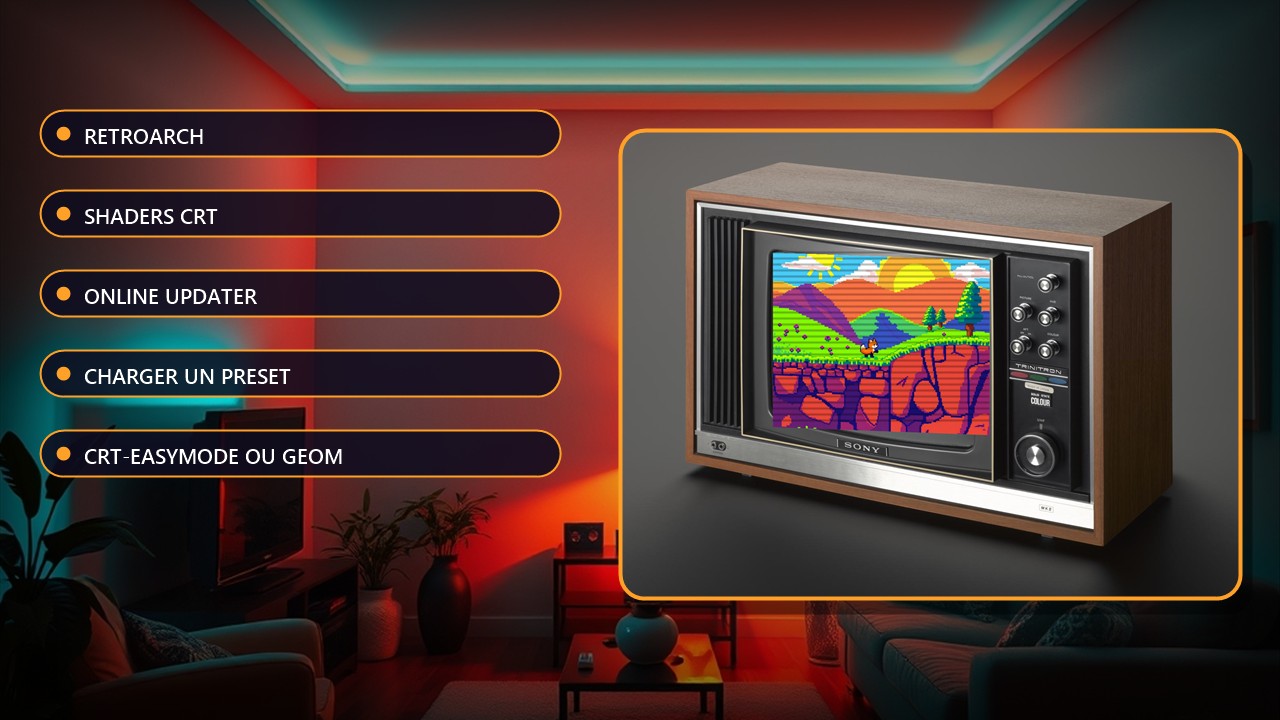
Tutorial: enable a CRT filter (scanlines) in RetroArch, step by step
8 and 16-bit games were designed for cathode-ray TVs. On a modern screen, pixels look harsh and colours flat. A CRT shader recreates scanlines, the phosphor mask and the slight blur of the era. This guide was checked on 12 November 2026 with RetroArch (version 1.22.2 is listed as latest on the GitHub releases page at that date); if your menu differs, check your version.
Requirements
RetroArch installed (RetroArch), at least one emulation core and a game that already runs. A reasonably recent computer or handheld handles light shaders; the heavy ones need a real GPU.
Steps
1. Download the shaders: Main Menu, Online Updater, Update Slang Shaders (Glsl or Cg depending on your video driver; every shader in a chain must be the same type).
2. Start a game.
3. Open the Quick Menu, then Shaders, then Load Shader Preset, and pick a preset from the CRT folder.
4. For a first try, take a light shader such as crt-easymode or crt-geom; crt-royale is the most faithful but the most demanding, especially from 1440p up.
5. Turn on integer scaling (usually Settings, Video, Scaling, Integer Scale): scanlines stay even, otherwise they produce artifacts.
6. Save: Quick Menu, Shaders, Save, then Global, Core, Content Directory or Game. The most specific wins: a game preset overrides the global one.
Warning
A shader that is too heavy makes a handheld or mini PC stutter: switch to zfast-crt or a fast crt-geom variant. If the picture goes black or crashes, remove the shader in Quick Menu, Shaders. The shaders are official and free through the Online Updater.
Going further: the list of CRT shaders and their demands (docs.libretro.com/shader/crt) and the official guide (docs.libretro.com/guides/shaders).
Image: Science Museum Group, CC BY 4.0, via Wikimedia Commons (modified).
Source: Documentation libretro