

Tutorial: install shadPS4 step by step and run your PS4 games on PC
This guide is for complete beginners. It was checked on 29 October 2026 against the official shadPS4 documentation (stable v0.20.0 of 14 October 2026, QtLauncher pre-release of 26 October). Versions change fast: if a step no longer matches what you see, check the official wiki.
Warning: shadPS4 is still in development and many games do not boot or crash. Check the compatibility list before you start. You must use your own games and system files, extracted from a PS4 you own and have already unlocked: this tutorial does not cover jailbreaking the PS4 and links to no game copies.
Requirements
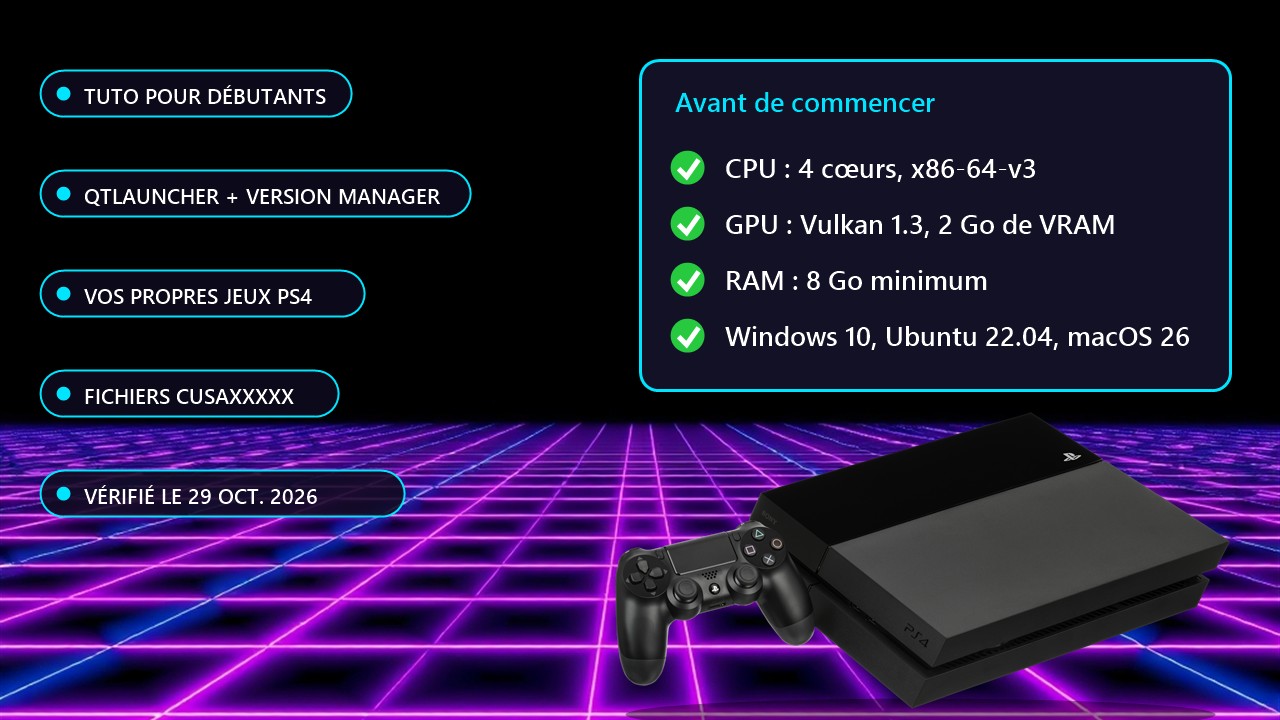
- CPU: at least 4 cores and 6 threads, above 2.5 GHz, x86-64-v3 compatible (Intel Haswell or newer, AMD Excavator or newer, Apple M1 or newer with Rosetta 2).
- GPU: 2 GB of VRAM minimum, Vulkan 1.3 with VK_KHR_swapchain and VK_KHR_push_descriptor. Update the drivers of every graphics chip, integrated ones included.
- Memory: 8 GB of RAM or more. System: Windows 10, Ubuntu 22.04 or macOS 26 minimum (no Intel Macs).
- On Windows, install Microsoft Visual C++ 2022 (vc_redist.x64.exe).
- A PS4 you own that is already unlocked, to extract your games, the system modules and the trophy key.
Step 1: install the launcher
- Open the shadps4-qtlauncher releases page and expand “Assets”.
- Download the archive for your system (win64, linux or macos) and extract it to a folder that does not need administrator rights.
- Run shadPS4QtLauncher.exe (Windows) or shadPS4QtLauncher-qt.AppImage (Linux). On macOS, open the app, click “Done”, then go to System Settings, Privacy & Security, and click “Open Anyway”.
Step 2: download an emulator version
- In the launcher, click “Version manager” at the top right, then “Refresh List” if needed.
- Pick a Stable version (recommended to start) or a Nightly one, click “Yes”, wait for the download, then “OK”.
- Close the manager. To switch versions later, click the version number at the top right.
Step 3: add your games
- Extract the game from your PS4 with a tool such as Itemzflow or ftpdump (use Ethernet: Wi-Fi is very slow).
- The folder must be named CUSAxxxxx (xxxxx = serial number). With ftpdump, remove the -app suffix from the base game folder.
- Copy it to the game install folder set on first launch, or add the dump location as an install path. The game shows up in the list.
- For an update, name the folder CUSAxxxxx-patch and put it in the same place.
Step 4: system modules, trophy key and fonts
- Start an FTP server that can decrypt on the PS4 (GoldHEN's works) and connect with an FTP client such as FileZilla.
- Modules: copy every file from /system/common/lib/ into shadPS4's sys_modules folder (right-click a game, Open Folder, Open Log Folder, then go up one level). They improve compatibility.
- Trophy key: copy /system/vsh/SceShellCore.elf, drag it onto tropy_key_export.exe (linked on the wiki), then enter the displayed key in the settings.
- Fonts: copy the font folder from /preinst/common/ and the font2 folder from /system/common/ into the fonts folder set in the settings.
Step 5: launch and tune
Select a game in the list and launch it. Configuration (controller, resolution, graphics options) is detailed in the “Setting up shadPS4” guide on the wiki. From the command line, shadPS4 CUSA00001 starts the matching game. If a game crashes, check the compatibility list, try another version (Stable or Nightly) and check your modules.
Source: official shadPS4 wiki