

Tutorial: play Pikmin 1 and 2 natively on PC with Open Nectar 1.1.1
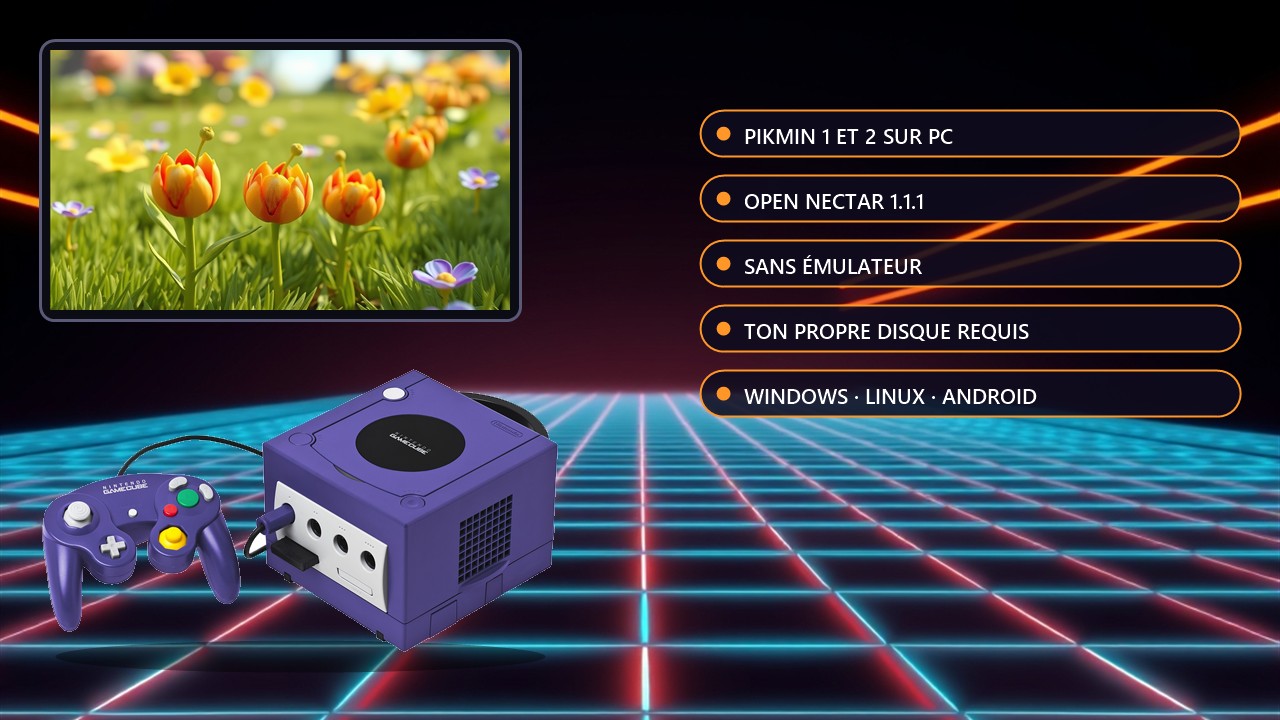
Open Nectar is a native PC port of Pikmin and Pikmin 2 built from a decompilation of the games' code: it is neither an emulator nor a wrapper. This guide targets version 1.1.1 (published October 29, 2026); check the releases page for a newer version before you start.
Before you start
Requirements: an image of your own disc (a dump of your own discs), one of: Pikmin USA Rev 1 (GPIE01), Pikmin Europe (GPIP01), Pikmin 2 USA (GPVE01) or Pikmin 2 Europe (GPVP01). The project ships no game data. Plan for about 1 GB of free space. ISO/GCM images work directly; RVZ, WIA or GCZ need converting with DolphinTool (provided by Dolphin, not by Open Nectar), which needs about 1.4 GiB free in your temp folder.
Warning: only use discs you own. Open Nectar is an unofficial fan project; Windows SmartScreen may flag the executable as unsigned. Keep a copy of your saves, which are stored in the install folder.
Installing on Windows
- Install a graphics driver with OpenGL 3.3 or newer from your GPU vendor (Intel, NVIDIA or AMD). The generic "Basic Display Adapter" driver from Windows Update does not work.
- Download the Windows archive from the releases page and extract it to any folder; no installer is needed.
- Run
nectar-launcher.exe. If SmartScreen appears, click "More info" then "Run anyway". - Select your disc image, then choose an install folder.
- Wait a minute or two while the image is verified and assets are extracted (about 650 MB).
- Click the Pikmin cover to play. A console window opens with the game: that is intentional and helps with troubleshooting.
Installing on Linux
- Download either
Open_Nectar-x86_64.AppImage(make it executable withchmod +x) ornectar-linux.tar.gz(extract withtar -xzf, then runnectar-linux/nectar-launcher). - Make sure your system has glibc 2.29 or newer and an OpenGL driver; install zenity or kdialog for file pickers if needed.
- Click Install under the game's cover, choose your disc image and an install folder, then reopen the launcher to play.
Controls and what's new in 1.1.1
On keyboard: move with WASD, A = Space, B = Left Shift, pause = Enter, settings menu = F1, control mode switch = F2. Everything is remappable from F1. The mouse works (left click = throw, right click = whistle). Version 1.1.1 adds a Switch controller layout, mouse support in most Pikmin 1 menus, a free camera option facing the cursor, touch buttons on Android and a default 480p 3D resolution with less GPU work. To update, install over the existing version (on Android, do not uninstall first: your data would be deleted).
Official project repository and full guide: Open Nectar on GitHub. No reliable video tutorial was selected today; we will add one if a good resource appears.
Source: GitHub Open Nectar