




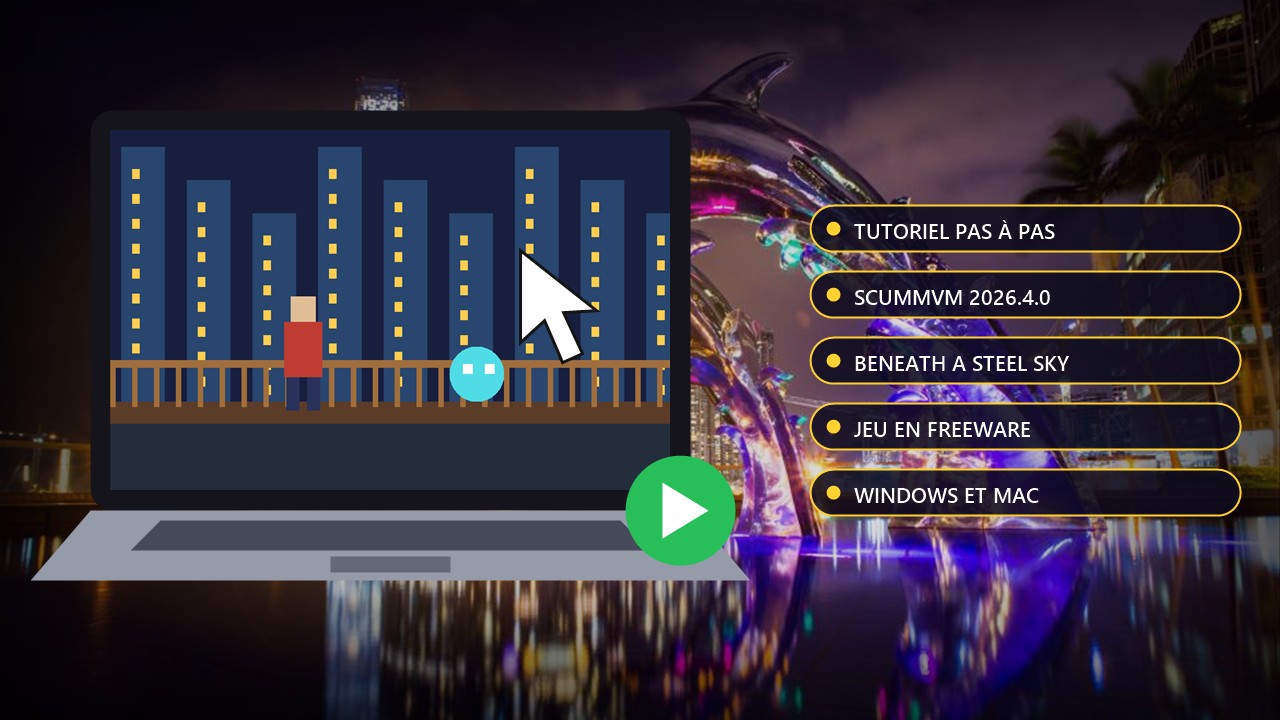
Tutorial: play Beneath a Steel Sky for free with ScummVM 2026.4.0
ScummVM is not an emulator: it replaces the program of many classic adventure games and reads their data files. This guide targets version 2026.4.0 (October 2026), the latest stable release checked on November 27, 2026. Its additions include the Mortadelo y Filemón games, Dracula Resurrection and Star Wars: Rebel Assault. You need not buy anything to start: Beneath a Steel Sky, Revolution Software's cyberpunk adventure, is offered as freeware on the ScummVM site.
You need: a Windows PC or a Mac, about 300 MB free to be safe, an Internet connection and a .zip extractor.
Step by step
- On the official download page, get version 2026.4.0 for your system (installer or .zip for Windows, .dmg for macOS) and install it.
- On the free games page, download the CD version of Beneath a Steel Sky (66.2 MB, with voices). The floppy version (7.3 MB) is lighter.
- Optional on Windows: open PowerShell in the download folder and run the command below. For the CD version, the expected hash is
53209b9400eab6fd7fa71518b2f357c8de75cfeaa5ba57024575ab79cc974593.Get-FileHash .\bass-cd-1.2.zip -Algorithm SHA256 - Create a "ScummVM Games" folder and extract the archive into a "BASS" subfolder.
- Start ScummVM, click "Add Game", select the BASS folder and click "Choose".
- Keep the default settings, press "OK", then double-click the game to start it.
Good to know: Ctrl + F5 (Ctrl + fn + F5 on Mac) opens the ScummVM menu to save, Alt + Enter toggles full screen and Ctrl + Alt + A toggles aspect ratio correction. By default the game autosaves every 5 minutes. See the keyboard shortcuts and the official add-a-game guide. For other games, only use files from your own discs or purchases. Menus may change between versions.
Getting started video:
Source: ScummVM free games and ScummVM documentation