

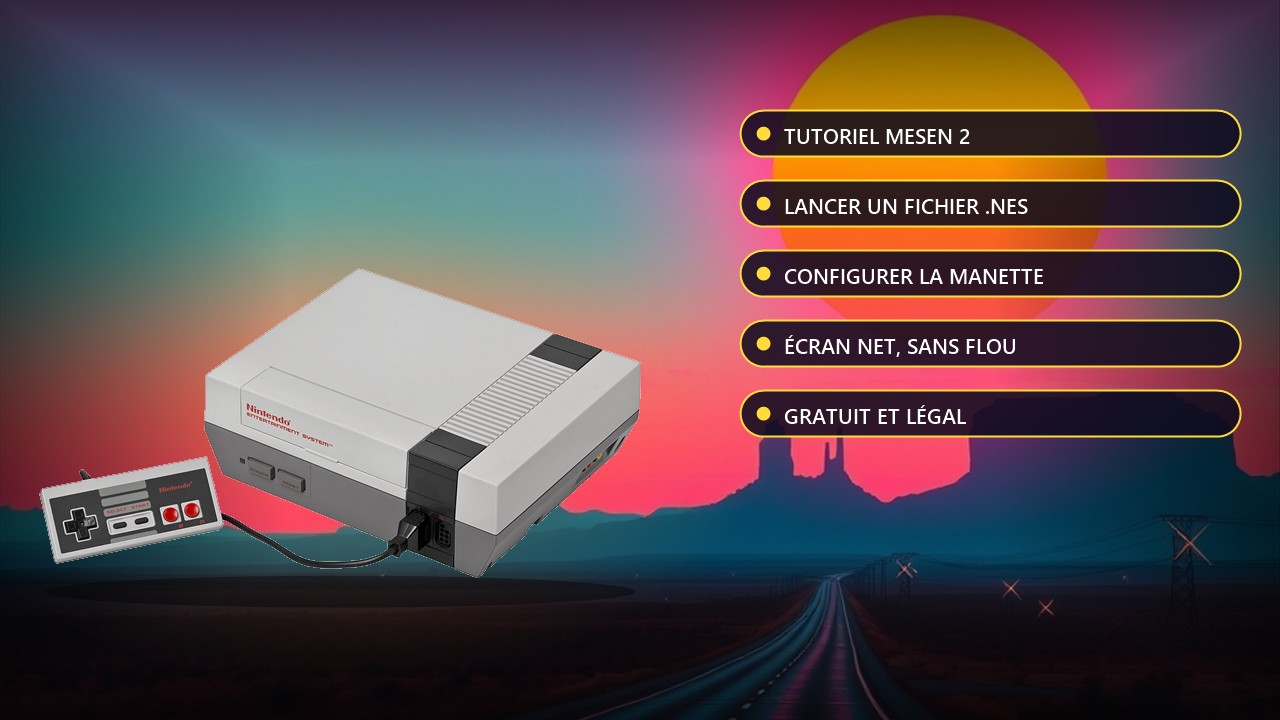
Tutorial: play a free NES game on PC with Mesen 2, step by step
This guide was checked on 15/11/2026: the Mesen 2 GitHub releases page lists version 2.1.1 as the latest release at that date. If your menu looks different, check your version. It is written for a complete beginner on PC.
Requirements
A Windows, Linux or macOS PC (on Linux and macOS the SDL2 library must be installed first), a USB controller if possible, and a NES game you are allowed to use. For the example we use All Hell Unleashed, a free NES game published by its author on itch.io.
The steps
1. Download Mesen 2 from the official site (mesen.ca) or from the GitHub releases page (GitHub). Pick the build for your system.
2. Extract the archive into a folder of your choice. On Windows, double-click the .exe file to start the program.
3. Download the game from its official page (itch.io), the 512 kB "Emulator (.nes)" file. Do not take the "Real NES & Flash Cart" file: it is meant for a real console.
4. In Mesen, open the File menu, then Open, and pick the .nes file. The game starts.
5. Set up the controller: open Settings, then Input, choose the player 1 port, click the configuration button, then map each button to a key on your USB controller or keyboard.
6. For a sharp picture, open Settings, then Video, and enable integer scaling if it is offered: pixels stay even, with no blur.
7. To play with two, plug in a second controller and set up the player 2 port. In All Hell Unleashed, both players control the same character.
Warning
Only use games you are allowed to use: free games published by their authors, homebrews, or copies of cartridges you own. Always download from the game's official page.
Going further: the official Mesen documentation is at mesen.ca/docs. Once you are comfortable, you can add a CRT filter, see our RetroArch CRT shader tutorial.
Source : Mesen (official site)